
Welcome to your new Red River services!
Your complete guide to getting started with your new services.
We’re excited to have you as part of the Red River family. Our Welcome Guide makes it easy to set up your services, manage your account, and maximize the benefits of your connection.

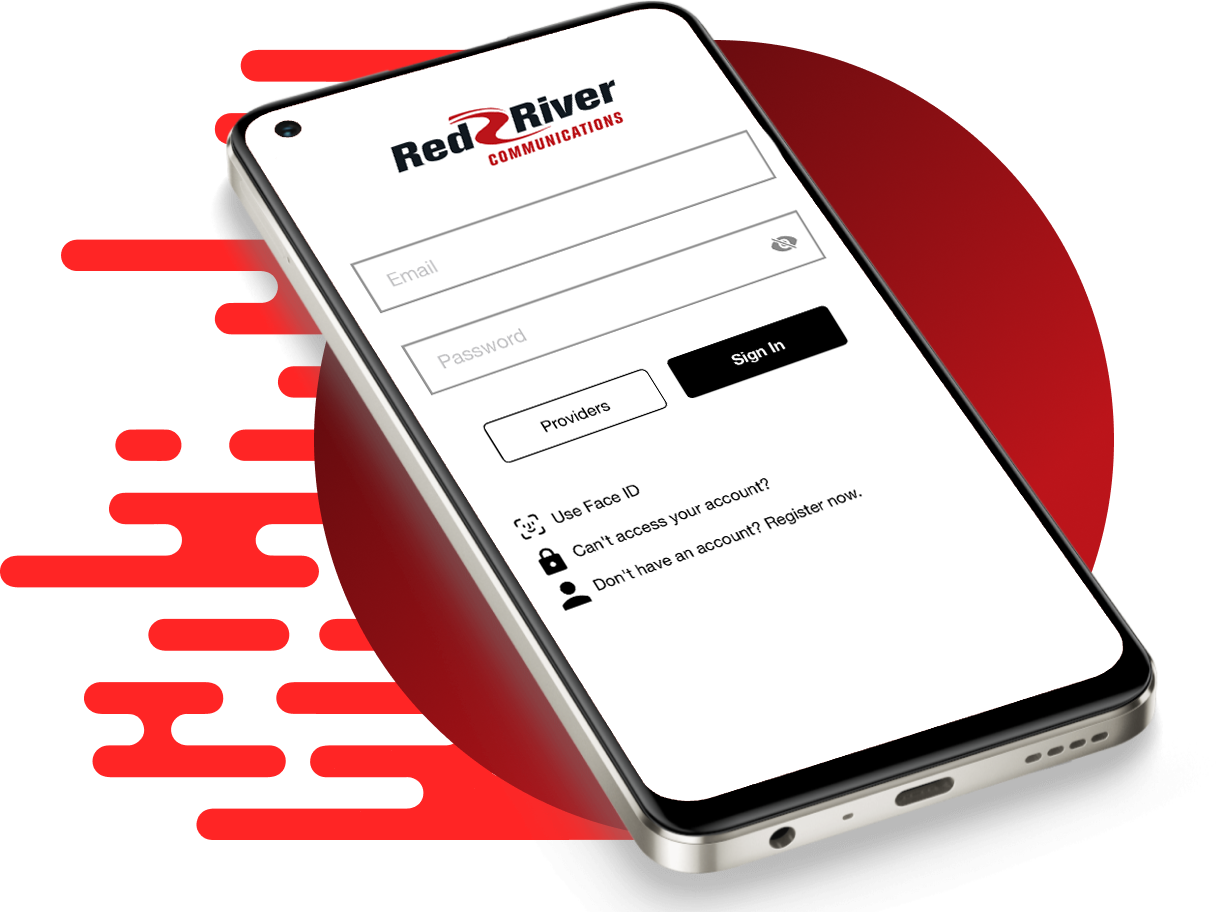
Access your account using SmartHub.
SmartHub makes it easy to pay and manage your account. It is a web and mobile App that allows you to:
- Manage your account
- View and pay your bill
- Report service issues
- Receive important notices
Download the App Today


Quick Start Guide
pay my bill
Red River Apps
SmartHub – Account Management
View and pay your bill, set up auto payments and paperless billing, and update account information. If you are new to SmartHub and need a little extra help? Visit our Support Page to get started.
Control your Wi-Fi from your smartphone.
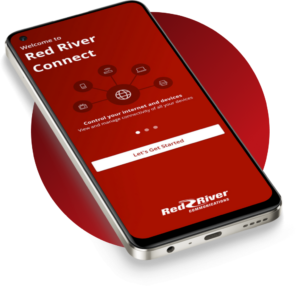
The Red River Wi-Fi App is easy to use on your mobile device or tablet. From adding a home guest network to scheduling Internet pauses when your kids need a break, our mobile app provides easy control to fit your needs. Plus, the basic app is free to all who use Red River Communications FiberFAST Wi-Fi services.
New to Red River Connect and need a little extra help? Visit our Red River Connect Page to get started.
Download the Red River Connect App today!
MyTVs App – Included with your Digital TV Subscription
Getting started with the MyTVs App
- Download the MyTVs application from the appropriate user store (Apple App Store or Google Play Store).
- Select the MyTVs icon from the screen. Click ADD NEW ACCOUNT.
- Follow the steps in the App to link your device to your Video Account through your STB.
- Select Menu on your TV remote control.
- Arrow down to Settings-Apps-Device Code.
- In the Manage Your Devices screen, Your Device Code will appear in the window.
- Enter the Device Code into your MyTVs app.
- Click PAIR DEVICE.
- Enter the 8-digit Passphrase into your MyTVs app from the Manage Your Devices window on your TV.
- Click PAIR DEVICE and enter an Account Name.
MyTVs Menu
The following sections provide details for accessing the program guide, searching for a specific program, showing existing recordings or scheduled recordings, and using your smartphone as a working remote control with your set top box:
- Remote
This action allows you to use your smartphone as a functional remote control. - Guide
The Guide allows the user to view guide information by time and date. Programs may be selected within from the guide to view program details, schedule future recordings, and watch program. - Channel Guide
The Channel Guide allows the user to view guide information by channel. Program may be selected within the guide to view program details, schedule recordings, and watch program. - Currently Watching
Shows the user what is currently being watched on the selected STB. Figure 1-2 MyTVs Menu. - Recordings
All existing and scheduled recordings may be viewed within the Recordings menu. Users may select a STB from within their home and view either Current, Future and Series recordings. Allows the management of recordings to include deleting recordings or series. - Search
This action allows the user to search by titles, programs, keywords, or phrase for a specific program. Search results may be selected to view program details and schedule future recordings. - What’s Hot
What’s Hot provides the user with real time information about the most popular watched programs in the user’s area as well as the most popular recordings and most popular series recordings. Program may be selected from within What’s Hot to view program details and schedule future recordings. User may tune their TV to a program by selecting “Watch” on the program details screen. - Settings
Users can mange their account, switch accounts, add devices, and refresh user and guide data.
For more information and instructions about the MyTVs App, refer to the user guide below:
Download the MyTVs App today!
General Information
Need Assistance?
Need help with your Wi-Fi or Phone service? Looking for TV troubleshooting tips? You’ll find everything you need to make the most of your Fiber Internet, Wi-Fi, Digital TV, Phone, Security Cameras, or Cellular services here. Plus, 24/7 technical support is available at 701-553-8309.

Oh no! Let’s get your connection fixed!
Whether your Wi-Fi is having one of those days or your streaming is buffering like it’s stuck in a time loop, you’ve landed at the right place. Dive into our Internet Support section — it’s loaded with tips, fixes, and insider tricks to get your connection back to “blazing fast” status. No tech-speak required (unless you want it). Click below and let’s zap those digital gremlins together, or give our team a call, and we will get you back to binge watching in no time!

Is your TV giving you problems? We won’t have it!
Cables crossed? Picture glitches? Channel surfing turning into channel spinning? You’ve come to the right place. Our Digital TV Support hub is your backstage pass to clear reception, smooth streaming, and all the signal magic. Click through and let’s give your screen the VIP treatment it deserves.

Need Phone Assistance?
Got voicemail gremlins? Dropped calls acting like they’re auditioning for a drama? You’ve dialed into the right spot. Our Voice & Phone Support page is packed with audio-saving hacks, call-clearing tricks, and the kind of help that makes your phone line feel like a smooth operator. Tap below and let’s restore your voice to its full power.

If you are looking for the legal stuff, here is the place!
You can find all important legal documents such as terms and conditions, policies, by-laws, and much more on our Legal Page.
Customer support
If you’re having trouble with your services, our customer experience team is always happy to assist you. We have also created some helpful online resources and step-by-step user guides, which you can access here at any time.
